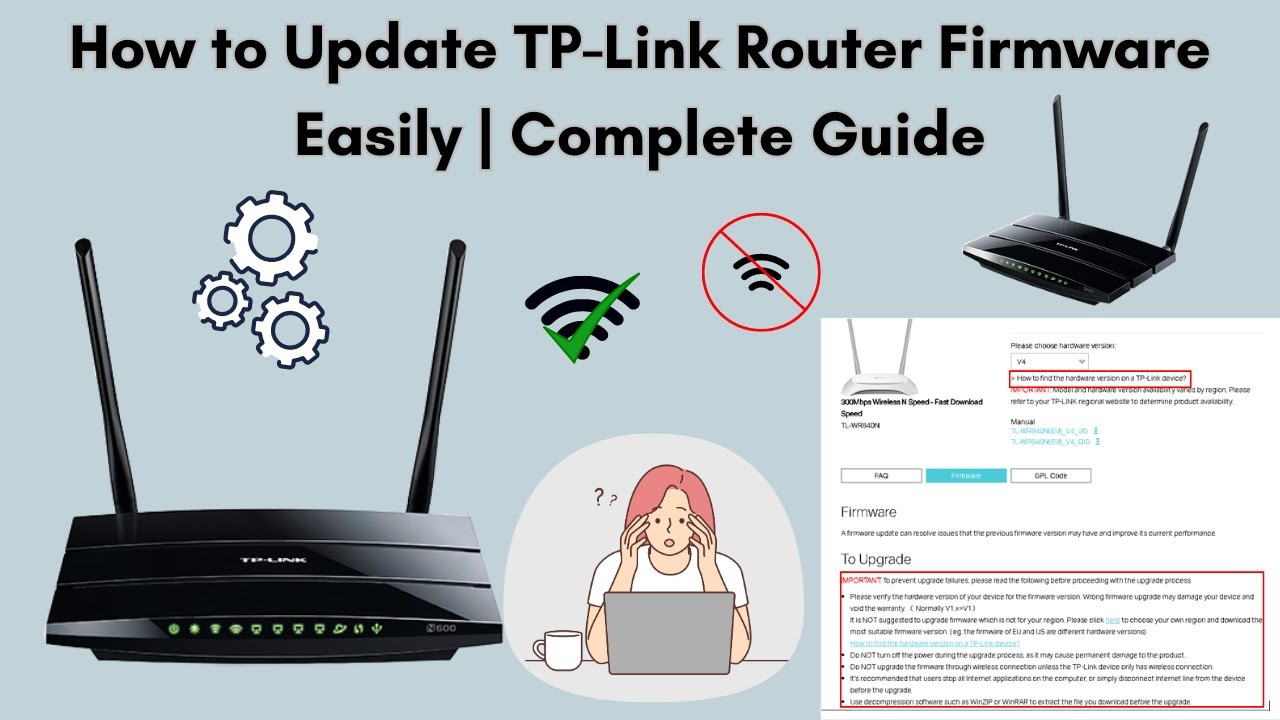

Keeping your router’s firmware updated is crucial for network speed, security, and reliable performance. Outdated firmware can leave you vulnerable to cyber threats, hinder connection quality, and prevent access to new features. This guide explains why firmware updates matter, and how to update your router safely.
Why Firmware Updates Matter
-
Security fixes: Manufacturers release firmware updates to patch vulnerabilities hackers could exploit.
-
Better performance: Updates can improve Wi-Fi speed, range, and stability.
-
New features: Access improvements like parental controls, updated management apps, or better device compatibility.
-
Bug corrections: Fixes for dropped connections, login issues, and other connectivity bugs.
How to Update Your Router’s Firmware
Step 1: Find Your Router’s IP Address and Log In
Open a browser and enter your router’s IP address—usually something like 192.168.0.1 or 192.168.1.1. Log in with your admin username and password. This info is often printed on a sticker on your router.
Step 2: Locate the Firmware or Update Section
In the router’s settings, look for a tab labeled “Firmware,” “Update,” “Administration,” or “Management.” The exact location varies by brand.
Step 3: Download the Latest Firmware
Visit your router manufacturer’s official website. Search for your exact router model and download the newest firmware file. Never use third-party sites to avoid malware or incompatible files.
Step 4: Upload and Install the Firmware
In your router’s update section, select “Choose File” or “Browse.” Upload the firmware file you downloaded, then click “Update” or “Upload” to begin the upgrade. Do not disconnect or power off your router during this process—it may take a few minutes.
Step 5: Reboot and Reconnect
Once the update is complete, allow the router to automatically reboot, or do so manually if prompted. After restarting, check your settings and restore any backups you may have made before the upgrade.
Tips for Smooth Firmware Updates
-
Use a wired (Ethernet) connection if possible for maximum stability.
-
Backup your current router settings before starting the update.
-
Only download firmware from the official manufacturer’s support site.
-
Do not interrupt the update process; a lost connection or power outage can damage your router.
Final Thoughts
Regular firmware updates ensure your network stays secure, fast, and reliable. Make a habit of checking for updates a few times a year, or enable automatic updates if your router supports it.